
Your Whole Operation, One Screen.
See every property, every task, every deadline… and actually work from it, not just look at it.
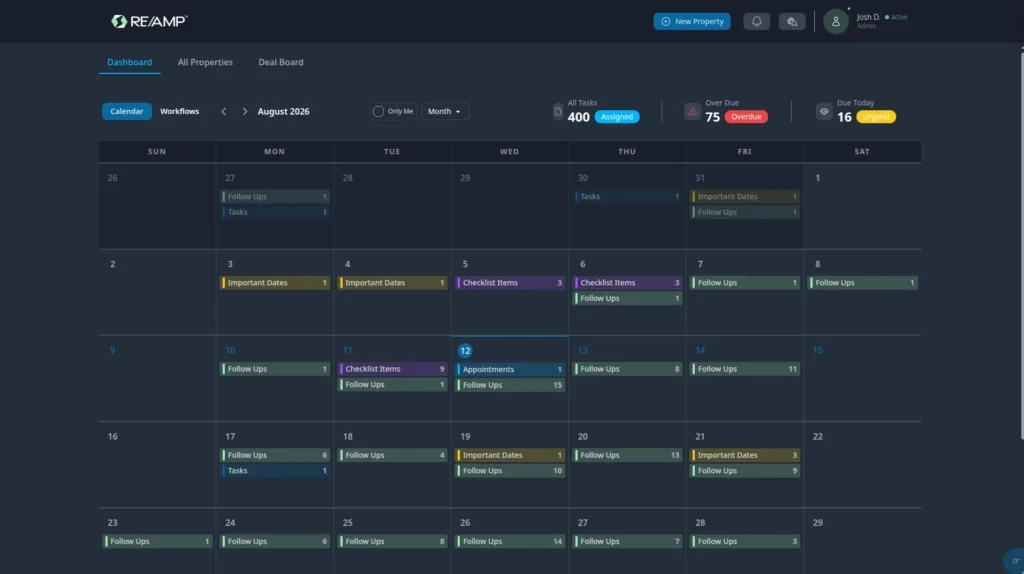
RE/AMP brings your property’s tasks, checklist items, important dates, workflows, and stages into centralized views so your team can see what needs attention and act on it without constantly opening individual property records.
You should be able to see and work in the same place
Sometimes you have to jump around. Sometimes you just need to hammer out 10 calls.
Book A DemoStop Hunting Through Properties To Find What Needs Attention
When important work is spread across individual property records, calendars, task lists, and reminders, it becomes difficult to see the bigger picture.
You shouldn’t have to open a dozen properties just to figure out what is due today or which deals have stalled.
RE/AMP gives your team centralized views of the work happening across your properties, making it easier to see what’s coming up, what needs attention, and where every property currently stands.
A Calendar You Actually Work From
The RE/AMP calendar isn’t just a place to look at dates.
Tasks, checklist items, follow-ups, appointments, and important property dates appear directly on the calendar as work moves through your processes.
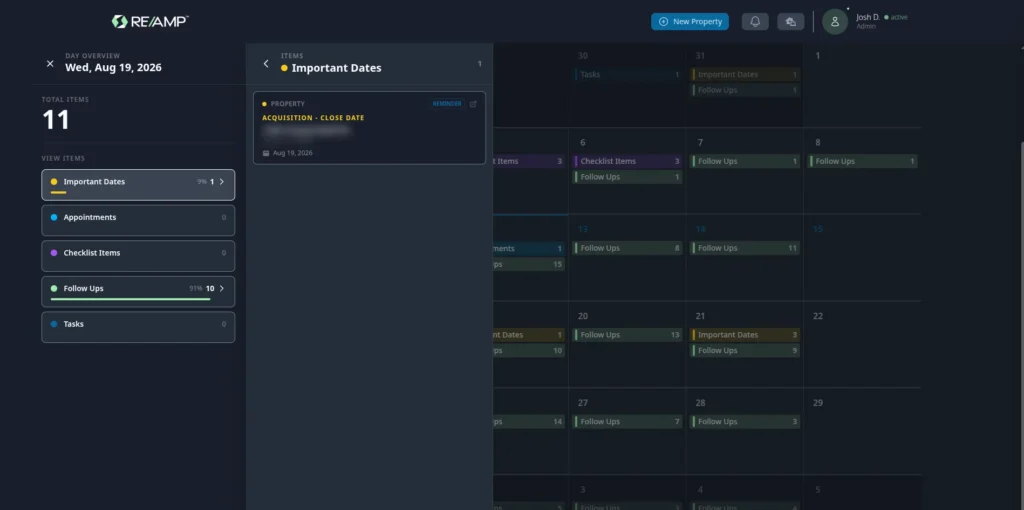
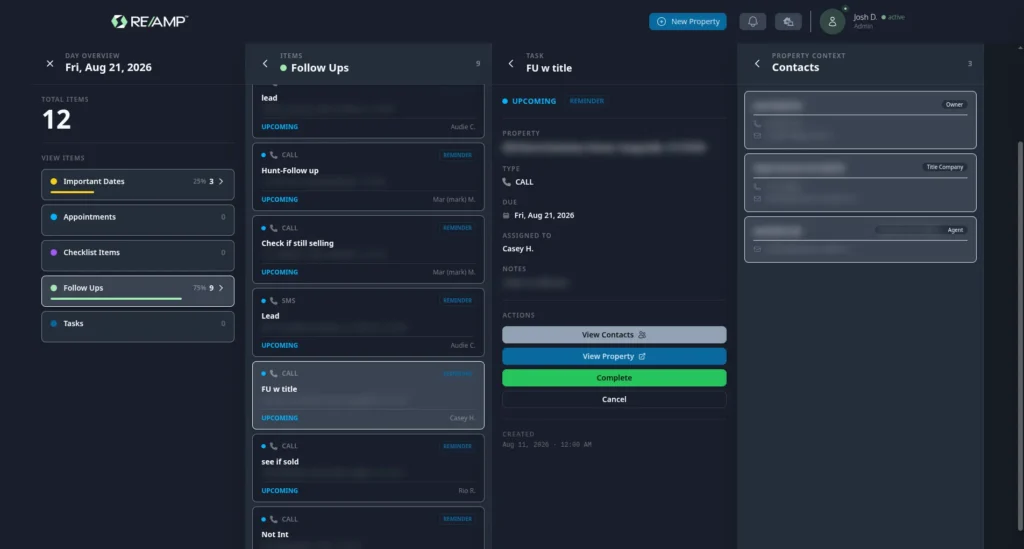
From the calendar, your team can take action without opening every individual property record.
Complete tasks, check off checklist items, and access relevant property contacts directly from the calendar view.
That means your calendar becomes an operational workspace rather than another screen your team has to check before going somewhere else to actually do the work.
See What’s Due Without Opening Every Property
If twelve properties have follow-up activity scheduled today, you can see those activities together instead of opening twelve separate property records.
The calendar gives your team a single view of today’s work while keeping the property context attached to each item.
You can identify what needs to happen, take action, and keep moving.
A Property Feed Filtered Your Way
The calendar tells you what needs to happen.
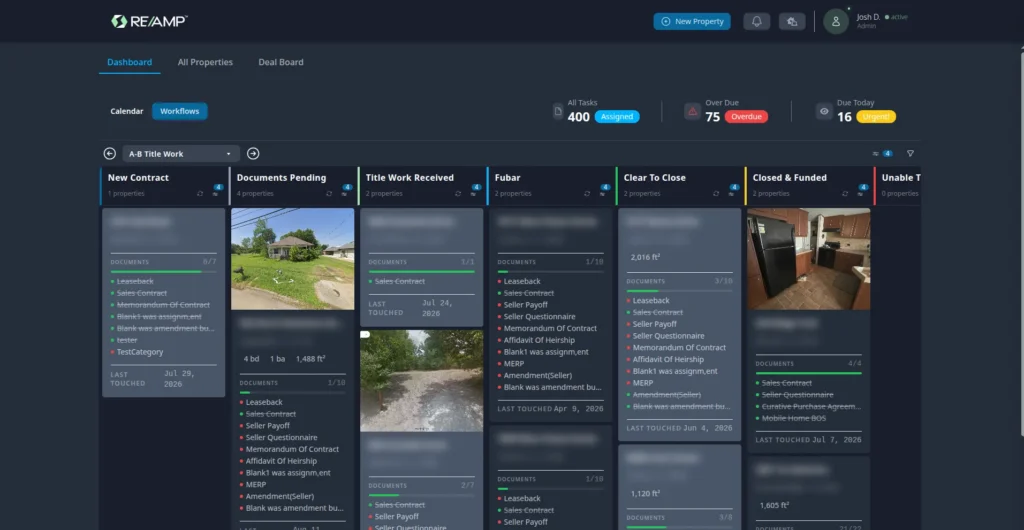
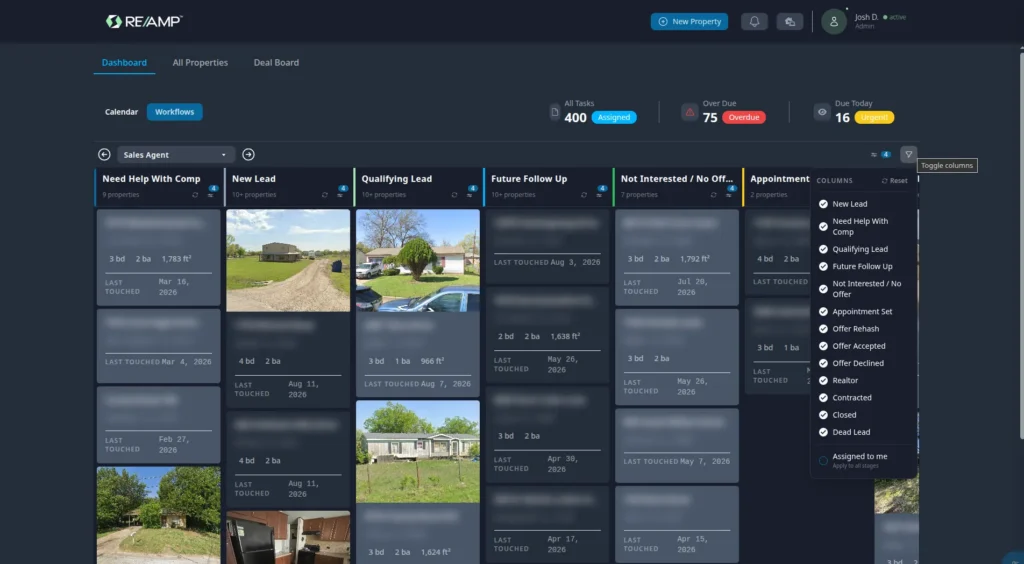
The Property Feed helps you understand where your properties are in the process.
View properties through the lens of their current workflow and stage, then filter the feed to focus on the specific properties you’re interested in.
Whether you’re looking at a particular workflow, stage, or other available property information, the feed lets your team narrow down a large portfolio into a useful operational view.
Relevant property information is surfaced directly in the feed so you can understand the state of a property without opening every record individually.
See What’s Moving And What’s Stuck
A property feed isn’t just a list of properties.
It gives your team a way to identify patterns across the portfolio.
You can see which properties are moving through their workflows, which are sitting in particular stages, and which properties may need attention.
Instead of relying on memory or manually checking individual records, your team gets a current view of the operation.
Calendar And Property Feed Work Together
The two views answer different questions.
Calendar:
What needs to happen?
Property Feed:
Where does everything stand?
Together, they give your team both the operational schedule and the broader view of the portfolio.
A task appearing on today’s calendar can be completed directly from the calendar. A property that appears stuck in a particular workflow stage can be found through the feed and opened for deeper review.
You can move between the two views depending on whether you’re managing today’s work or reviewing the state of the business.
How Calendar And Property Feed Work
1. Work Enters The System
Tasks, checklist items, follow-ups, appointments, and important property dates are created as properties move through your workflows.
2. The Calendar Updates
Relevant work automatically appears on the calendar so your team can see what is scheduled and due.
3. Work Directly From The Calendar
Complete tasks, check checklist items, and access property contacts without having to open each property individually.
4. Review The Property Feed
Switch to the Property Feed to view properties according to their current workflow, stage, and available filtering options.
5. Drill Into A Property When Needed
When something requires deeper attention, open the property directly from either view and continue working from its complete record.
A Real-World Example
Imagine twelve properties have follow-up calls or checklist items due today.
Without a centralized calendar, your team might need to open each property individually, check what is due, perform the work, return to the property list, and repeat the process.
With RE/AMP, today’s work is already visible on the calendar.
Your team can work through the follow-ups, complete checklist items, and access property contacts from the same screen.
When it’s time to review the broader operation, switch to the Property Feed and filter the portfolio by workflow or stage to see which properties are moving and which ones may need attention.
Why A Centralized Property View Matters
Spend Less Time Hunting For Work
See scheduled tasks, checklist items, and important dates across your properties without opening every record individually.
Work Directly From Your Calendar
Your calendar isn’t just a reference. Complete work and access relevant property information directly from it.
See The Whole Portfolio
The Property Feed gives your team a broader view of where properties are in their workflows and stages.
Find Stalled Properties
Filtering by workflow and stage makes it easier to identify properties that aren’t moving as expected.
Keep Work And Context Together
Calendar activities retain their connection to the property, giving your team the context needed to act without constantly switching between screens.
Frequently Asked Questions
About the Calendar and Property Feed
Yes. The calendar is designed to be an operational view where your team can complete tasks and checklist items directly.
Yes. Relevant property contact information can be accessed directly from calendar activities.
Tasks, checklist items, follow-ups, appointments, and important property dates can appear on the calendar as work is created and properties move through their workflows.
Yes. The Property Feed provides filtering based on workflow, stage, and available property information.
Yes. The Property Feed surfaces the property's current workflow and stage so your team can understand its position without opening every property individually.
Yes. Both views can be used to drill into the underlying property record when more detailed information or action is required.
See The Work. See The Properties. Keep Moving.
RE/AMP brings scheduled work and property status into centralized views so you can work from the calendar, understand the portfolio from the Property Feed, and open individual properties when deeper work is required.